How to Use Your Own OpenAI API Key in Athilio
TL;DR
- Athilio has two AI routes: cloud AI through athilio.ai, or direct OpenAI requests with your own API key.
- Your key is stored locally on your device. Requests go straight from your machine to OpenAI — they are not routed through Athilio.
- You do not need Athilio Pro for your own OpenAI key. You do need the desktop app and an OpenAI account with API billing set up.
- OpenAI API usage is billed separately from a ChatGPT subscription, and you pay only for what you use.
Athilio gives you a lot of room to explore your health data, but the first step is not always obvious. The AI tools are there for that moment: ask a question in plain language, or describe a dashboard widget and let the model sketch the first version. Those features can run through athilio.ai, or directly through OpenAI when you add your own key.
The cloud option is the easiest path if you want Athilio to handle the AI setup for you. If you want tighter control over the model, your OpenAI spend, or where the request goes, add your own OpenAI API key instead.
Why use your own key?
Privacy and control. When you add your own key, the AI request goes directly from your device to OpenAI. Athilio does not act as a middleman for those calls, and it does not store your key on Athilio servers.
Predictable cost. You pay OpenAI directly, at their per-token rates, for only the requests you make. Nothing is marked up. You can set a monthly spending limit on the OpenAI side and keep an eye on usage there.
Your choice of model. As OpenAI releases new models, you can use the one you prefer in Athilio without depending on the athilio.ai cloud setup.
What you'll need
- The Athilio desktop app(macOS or Windows). You manage the API key from the app's settings.
- An OpenAI account with API billing set up. See the next section.
- An Athilio account. Pro is not required for this setup; Pro is for automatic sync, all integrations, and Athilio cloud AI through athilio.ai.
Step 1: Create an OpenAI API key
A common source of confusion: the OpenAI API is billed separately from a ChatGPT subscription.A ChatGPT Plus plan does not include API access, and vice versa. API usage is pay-as-you-go — you add a payment method and are charged for the tokens you actually use.
- Sign in to the OpenAI platform (or create an account). This is a developer console, separate from ChatGPT.
- Add a payment method under Settings → Billing. You can set a monthly spending limit here so usage never runs away from you.
- Go to API keys and click Create new secret key.
- Give it a name you will recognize (for example athilio-desktop) and copy the key straight away. OpenAI only shows the full key once — if you lose it you will have to create a new one.
Need more detail? OpenAI's own docs cover this in their API quickstart and the help article Where do I find my OpenAI API key?.
Step 2: Add your key to Athilio
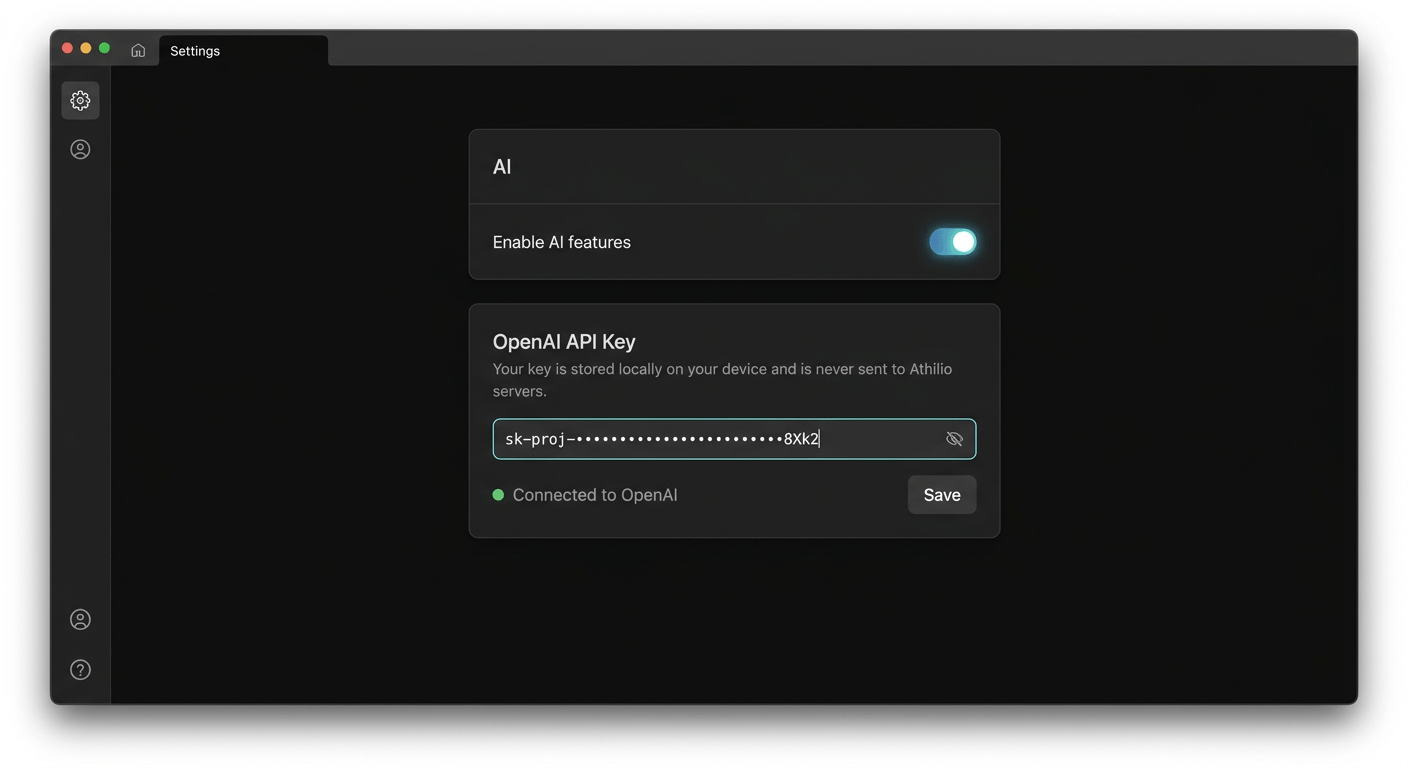 The AI settings in the Athilio desktop app: enable AI features, paste your OpenAI key, and confirm it connects.
- Open the Athilio desktop app and go to Settings → AI.
- Turn on Enable AI featuresif it is not on already. (AI is fully optional — you can turn it back off with the same toggle at any time.)
- Paste your secret key into the OpenAI API key field and click Save. Athilio checks the key against OpenAI and shows a connected status when it works.
That is the whole setup. The key lives on your device; it is not uploaded to Athilio. If you ever want to rotate it, create a new key in OpenAI and paste it in here.
Step 3: Start using it
Once your key is connected, two things open up. You can ask questions about your data— over your full history, not just the last week — and you can describe a widget and have the model build a starting point that you then refine by hand.
The model is a starting point, not a finished analyst. It will occasionally get a calculation wrong, just like in any generative tool. Treat its output as a fast first draft, then verify the numbers against your data.
Example: from a question to a widget
Here is a short, real example. Suppose you want to know when you slept best this year. In the Add widget dialog, switch to the AI Prompt tab and type the question as you would ask it.
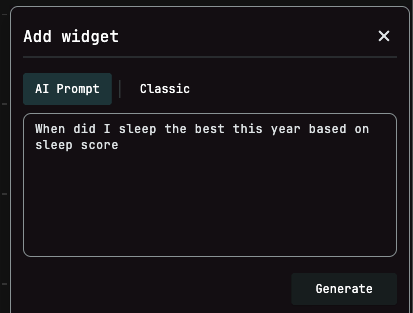 Describe what you want in plain language. No need to know which metric or graph type to pick first.
Athilio sends your question, the relevant metrics, and the selected data context to OpenAI. The model picks the data source and shape, then returns a widget you can drop onto your dashboard. Here it answered with the best night by sleep score:
 The model found the best night by Oura sleep score and returned it as a small table widget.
The same flow works for aggregations. Asking total distance cycled this year sums up every cycling session in your local data and returns a single number:
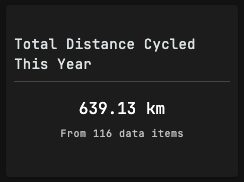 Total cycling distance for the year, computed from the training sessions already on the device.
From there you can tweak the widget, change the time range, swap the graph type, or turn the result into a custom metric. The AI handles the first draft; you stay in charge of the final dashboard.
Privacy and cost, in plain terms
Athilio keeps your key and health data out of Athilio servers. When you use AI, the app sends your question and the pieces of data needed to answer it directly to OpenAI. Athilio does not store that request, your key, or your data on Athilio servers. If you would rather not use AI at all, flip the toggle off and the feature disappears from the app.
Cost is usually low for personal use.Your actual spend depends on how much data you send, how often you use AI, and which model you pick. The easiest way to stay comfortable is the monthly limit in OpenAI's billing settings — once you hit it, requests stop until the next cycle.
If you do not want to manage a key at all, Athilio Pro includes the athilio.ai cloud option. Bringing your own key is the route for people who prefer to keep the AI call between their device and OpenAI.
New here? Read more about how Athilio works and the other posts on building dashboards from your own wearable data.